
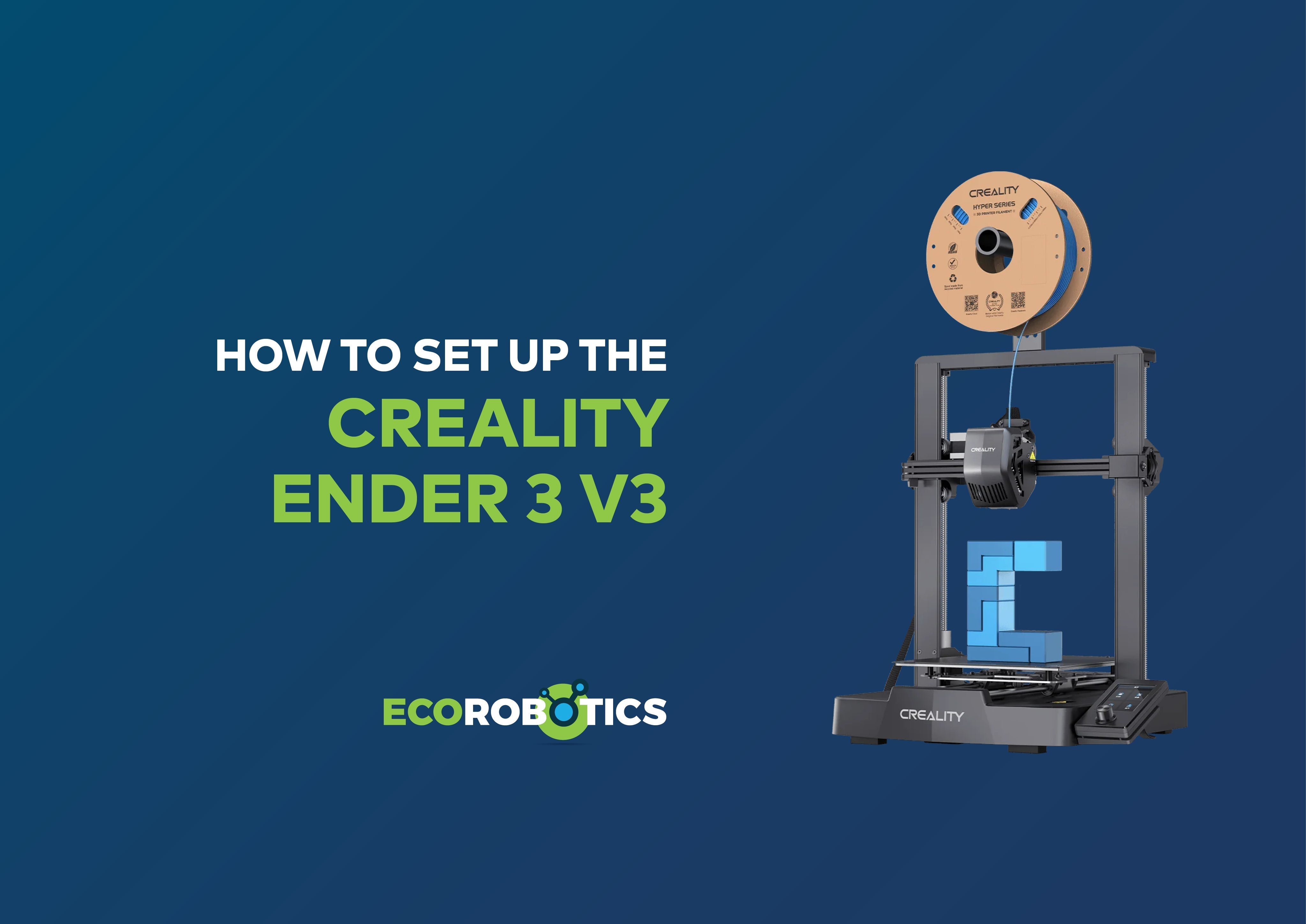
Whether this is your very first 3D printer or your latest upgrade, there’s something special about setting up a new machine and knowing that soon, you’ll be turning digital ideas into real objects.
We’ll walk through everything step by step. By the end of this guide, you’ll be ready for your very first print.
What’s in the box?
Inside your Ender 3 V3 package, you’ll find the main components and an accessory kit.

Main parts:
- Base component
- Gantry frame assembly
- Touch screen
- Filament tube
- Material rack
- Power cable
- Anti-tangle rack

Accessory kit:
- Hexagon flat round head screws (M4×8)
- Tool kit
- Socket spanner
- Teflon tube
- Sample filament
- Cutting plier
- Black cable ties ×5
- Wire clips ×3
- Extruder cable cover
- Nozzle cleaner
- USB flash disk
- Metal grease
- Quick installation guide
- After-sales services card
Take a moment to lay everything out neatly before starting. It makes the process much smoother.
Before you power on
Very important:
Please ensure that the correct voltage mode is selected according to your local power grid. For Namibia, the required voltage setting is 230V. Always double-check this before plugging the printer in.
Assembly – let’s build it
Step 1: Attach the gantry frame
Secure the base component to the gantry frame assembly using the supplied screws.
Tighten the screws firmly, but don’t over-tighten. The frame should feel solid and stable.


Step 2: Install the filament rack
Attach the filament tube securely to the material rack.
Then mount the material rack onto the printer frame. Make sure everything is aligned and secure before moving on.


Step 3: Connect the touch screen
Carefully attach the touch screen to the printer.
Make sure it’s aligned properly and seated securely in place.


Once connected, gently remove the protective plastic film from the screen.

Step 4: Connect cables
Now connect all necessary cables to their correct ports.
Take your time here — ensure each connection is secure and properly oriented. Nothing should feel forced.


Step 5: Bowden tube and finishing touches
Connect the Bowden tube.
Attach the wire clips.
Install the extruder cable cover.


Everything should now look neat and tidy.
Step 6: Power connection
Plug in the power cable — but don’t switch it on just yet if you haven’t checked the voltage. Once everything is secure, you’re ready to power up.


Loading filament
Place your filament on the material rack and make sure it feeds smoothly into the extruder. Make sure the filament is properly aligned before feeding it in.


First settings check
After powering on, go through a quick settings check. Once complete, you’re ready for your first test print.
To start a test print:
- Insert the memory stick into the printer.
- Select a file from the USB.
- Press print.
And just like that… your first print begins.
Returning the bed to home position
If you need to return the printing bed:
- Go to Settings
- Select Movement/Temperature
- Select 30mm
- Select XY
Changing filament (same type)
Switching filament is simple.
Step 1: Heat the nozzle
- Go to Settings
- Select Nozzle
- Set temperature to 220°C
- Press OK
Step 2: Remove current filament
Once heated, gently push the existing filament through until it clears.
Step 3: Insert new filament
Feed the new filament into the extruder until it begins extruding smoothly.
Let a few centimetres run through, then trim the excess.
Important tip:
When switching between different filament types, always heat the nozzle to the required temperature for the filament you are removing. This prevents residue from remaining inside the nozzle.
Preparing your first print file
Step 1: Install the slicer software
- Insert the included flash drive into your PC
- Copy the files
- Install the Creality slicer software
Step 2: Download a model
Visit Thingiverse
- Browse and choose the desired model.
- Go to the model's page and click “Download All Files”.
Step 3: Prepare the file in the slicer
- Open Creality Slicer
- Click File > Open
- Load your STL file
Select the correct filament type under material settings (PLA, ABS, PETG, etc.).
Adding supports
If your model needs support:
- Click Support (second last button on the left) in the slicer interface.
- Select Automatic Support

Final steps
- Click Slice
- Click Export to Local
- Save as .gcode
- Save to your USB stick
Then:
- Insert USB into printer
- Select USB Drive
- Choose your file
- Press Print
Features that make the Ender 3 V3 shine
The Ender 3 V3 is beginner-friendly — but it’s also seriously capable.
- CoreXZ structure
- Build volume: 220 × 220 × 250 mm
- Die-cast aluminium alloy frame
- Maximum speed: 600 mm/s
- Maximum acceleration: 20,000 mm/s²
Supported materials
PLA, TPU, PETG, ABS, PLA-CF, PETG-CF, CR-Carbon
This means you’re not limited to basic prints. As your confidence grows, your material options grow with you.
Creality PLA prints

Emrin PLA prints


SA Filament PETG prints

Final thoughts
If this is your first 3D printer, welcome to the club.
There’s something magical about watching your first layer go down. It might not be perfect. That’s okay. Every maker has a “first print” story — usually involving a bit of spaghetti filament.
The important part? You started.
The Ender 3 V3 is a fantastic machine to grow with. It’s fast, capable, and forgiving enough for beginners while still powerful enough for experienced makers.
Print something useful.
Print something fun.
Print something completely unnecessary but awesome.
This is where ideas become real.
Happy printing 🖨️✨